Fresco vs Illustrator on iPad: Your Creative Choice
Unsure which app suits your iPad artistry? Dive into our detailed comparison of Adobe Fresco vs. Illustrator on iPad to find the perfect tool for your drawing, painting, and vector design needs.
Adobe offers two key iPad apps: Adobe Fresco, blending raster and vector brushes for natural drawing and painting, ideal for artists. Adobe Illustrator on iPad, meanwhile, focuses on precise vector graphics for scalable designs like logos and illustrations. The choice depends on whether you prioritize expressive painting or crisp, editable artwork.
Adobe Fresco vs. Illustrator on iPad: Key Differences
Adobe Fresco
Primary Use: Digital Painting, Drawing, Sketching
Brush Types: Raster (pixel), Vector, Live (watercolor/oil)
Art Style: Expressive, Painterly, Traditional Feel
Core Strength: Natural media simulation, Blending
Ideal User: Digital Painters, Illustrators, Sketch Artists
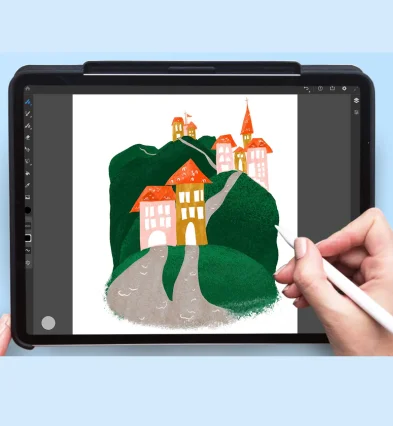
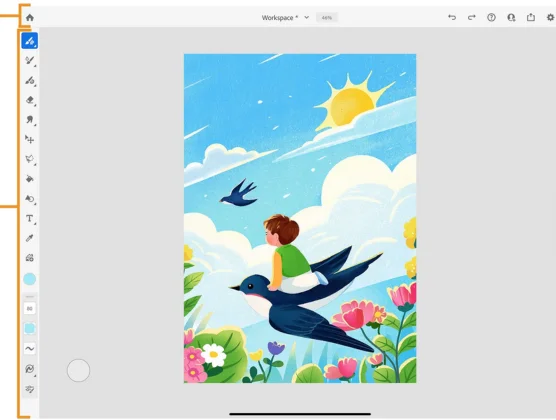
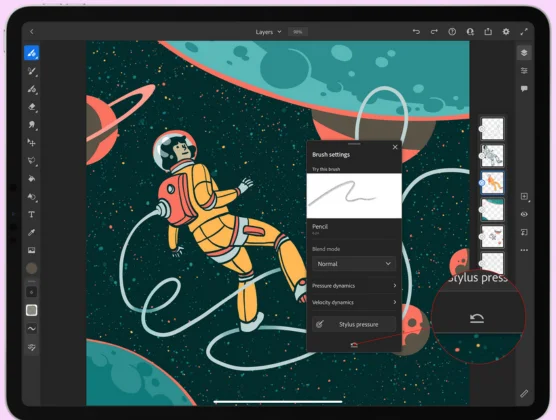
Adobe Fresco: Think of Fresco as your digital art studio for drawing and painting. It’s fantastic for making expressive artwork, sketches, and paintings that feel like real oils or watercolors. It mixes pixel-based drawing with scalable lines, giving you lots of artistic freedom.
Adobe Illustrator on iPad: This app is for precise design. It’s the go-to for creating logos, icons, detailed illustrations, and anything that needs to look super sharp at any size. If you need clean lines and shapes that you can easily change, Illustrator is your tool.
How They Draw (Brush Types)
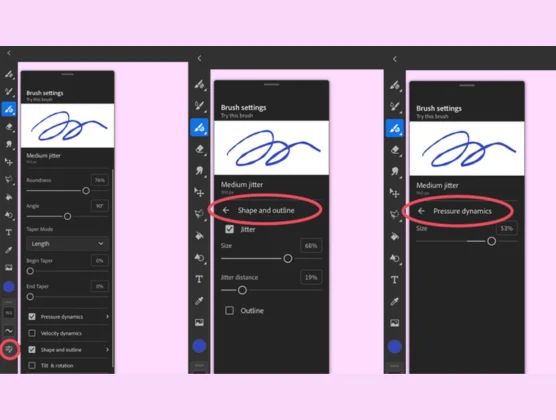
Adobe Fresco: Has a huge variety of brushes. You get pixel brushes for rich textures, vector brushes for lines that stay smooth when you resize them, and unique “Live Brushes” that truly act like real paint, blending colors like magic. It feels very natural to draw with.
Adobe Illustrator on iPad: Uses vector brushes, meaning everything you draw is made of editable lines and shapes, not pixels. This is great for making perfect, clean artwork that you can tweak endlessly without it getting blurry.
How You Work and Edit
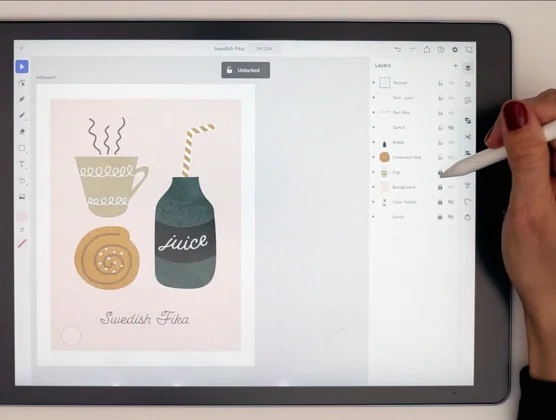
Adobe Fresco: Focuses on a fluid painting style with many layers and blending options. It’s great for laying down colors and creating artistic effects. Editing is more about changing the look of your brush strokes or pixel elements.
Adobe Illustrator on iPad: Offers very precise editing tools. You can adjust every point and line in your design, combine shapes, and make exact changes. It’s perfect for detailed graphic design where accuracy is key.
How They Connect with Other Apps
Both Apps: Work smoothly with other Adobe programs because they use Creative Cloud. You can start a drawing in Fresco on your iPad and easily open it in Photoshop or Illustrator on your computer, with all your layers saved.
Specifics: Fresco files open well in Photoshop. Illustrator on iPad opens standard Illustrator files and can even bring in Fresco drawings to turn them into vector art. This makes it easy to move your work between different Adobe tools.
Who Should Use Each App
Adobe Fresco: Is best for digital painters, illustrators, and sketch artists who love the feel of traditional art and expressive drawing.
Adobe Illustrator on iPad: Is ideal for graphic designers, logo creators, and anyone needing precise, scalable, and clean vector art.
Choose Your Creative Companion
Deciding between Adobe Fresco and Illustrator on iPad boils down to your art style. Fresco excels at natural painting and expressive drawing, while Illustrator is perfect for precise, scalable vector graphics and design. Pick the one that fits your primary need, or use both to cover all creative bases.

 English
  Français
 Español
 한국어
한국어